Menu Management
- In this article:
Introduction
This section describes how manage menu - add menu item, sorting and ordering existing menu items, etc.
Add Menu Item
ImCMS Menu Editor provide several way for adding document to menu:
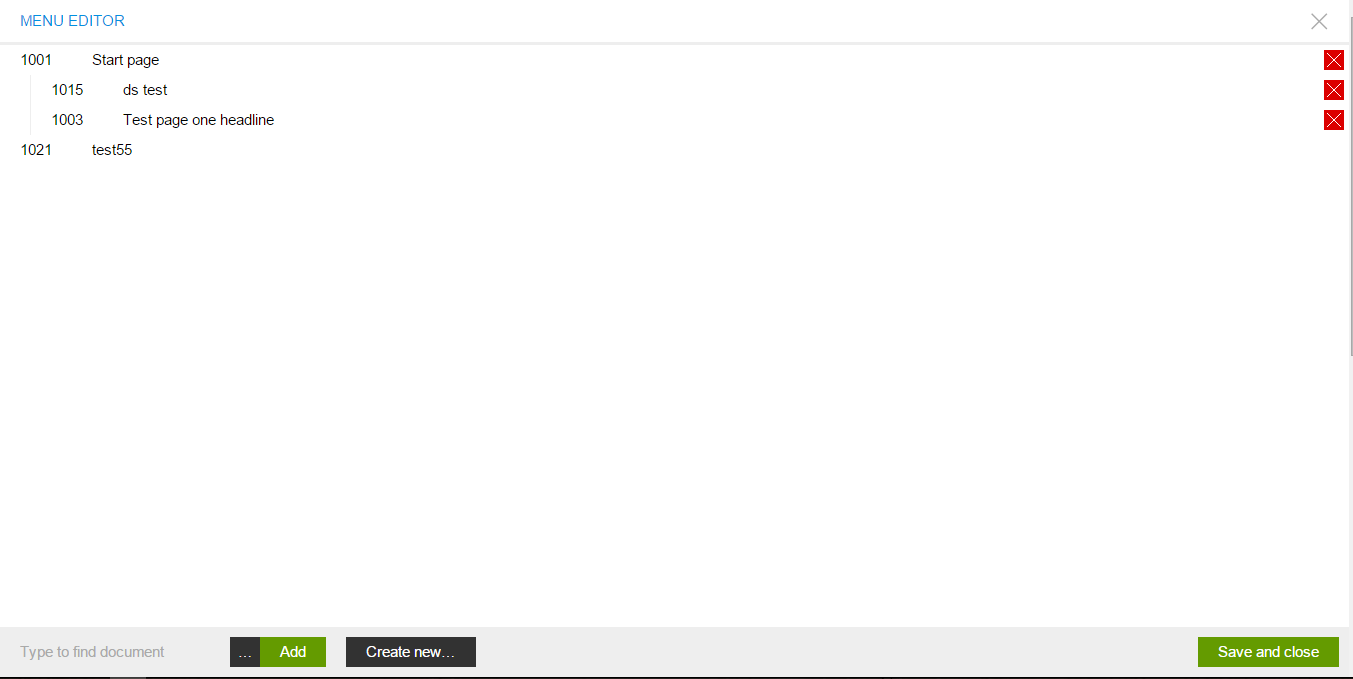
From search box that located in the left-bottom corner of menu-editor. When required document had been found click on the green button with text Add.

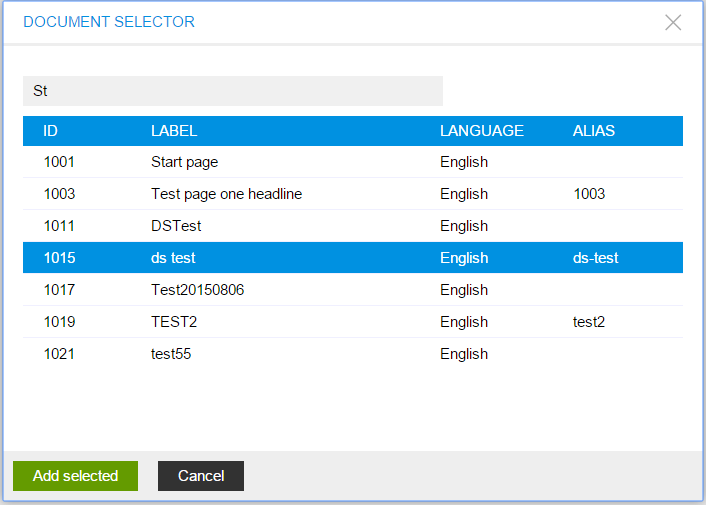
From search dialog. To open search dialog click on marked button (figure below).

In opened window type document name, and from presented result select required document and then click Add selected button.
From new document. To create new document from menu editor consider Base Document Management section.
Order Menu Items
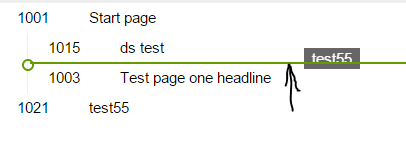
ImCMS menu has tree-structure. Each item can include several sub-item and can be included to another parent item.
ImCMS provide easy way to order menu-item by drag-n-dropping. To order items click on required one and drug and drop it into/above/below another one.